Metastore Setup - Databricks Unity Catalog
Metastore
A Unity Metastore in Yeedu links your Databricks Unity Catalog to external object storage (S3, ADLS, GCS) and controls metadata storage and access.
A Unity Metastore configuration includes:
- Unity Metastore URL
- Databricks Personal Access Token
- Default Catalog
- Storage Type
- External Storage Path (e.g., Amazon S3)
- Storage Secret (credentials for your object store)
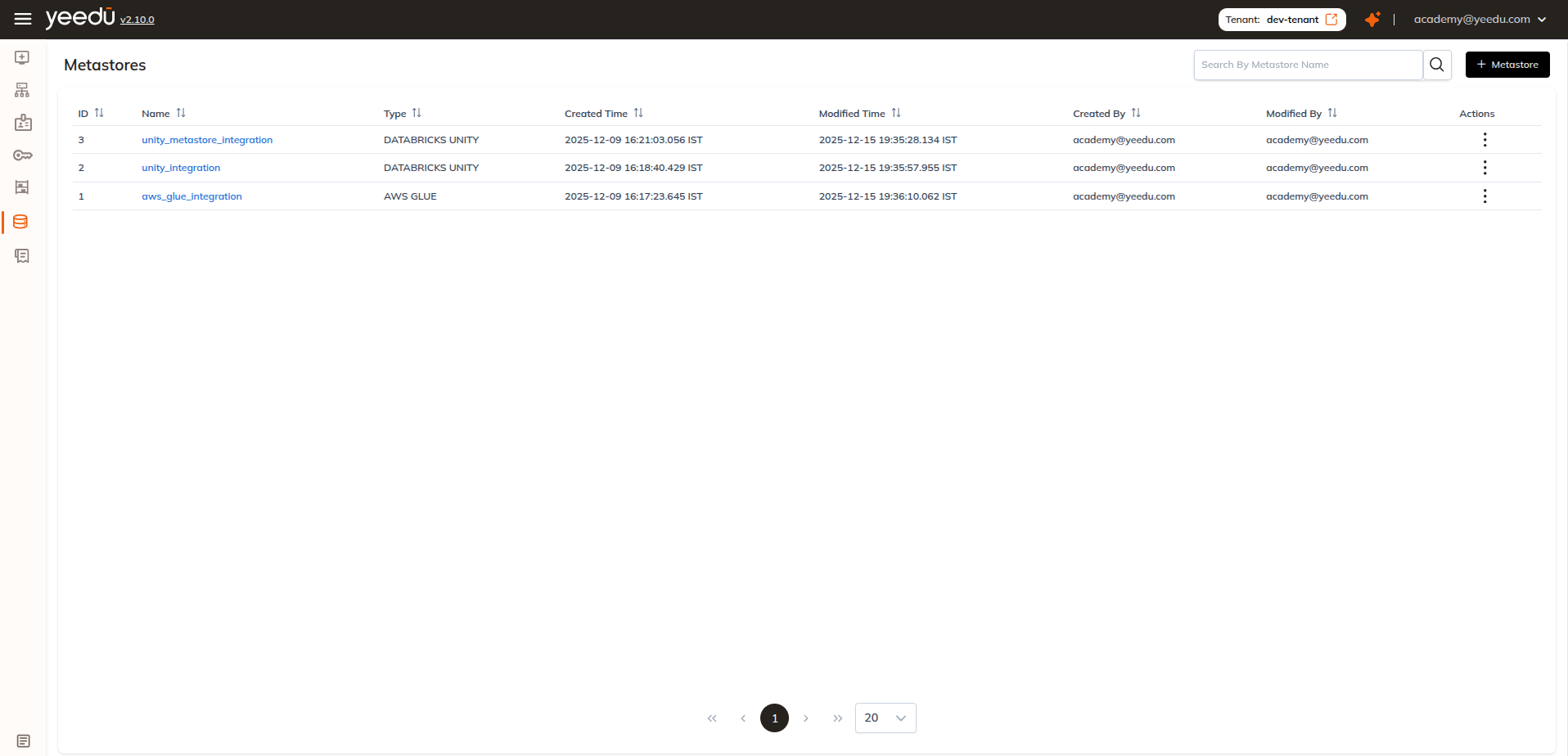
Scope Levels for Secrets
We apply our usual scope system to the secrets used in a Unity metastore (Databricks PAT & Storage Secret):
| Scope | Visibility |
|---|---|
| User | Only the creator can read/use |
| Workspace | All users in one workspace |
| Tenant | Visible to all users within the tenant |
Creating a Metastore
Click + Metastore at the top right of the Metastore page.
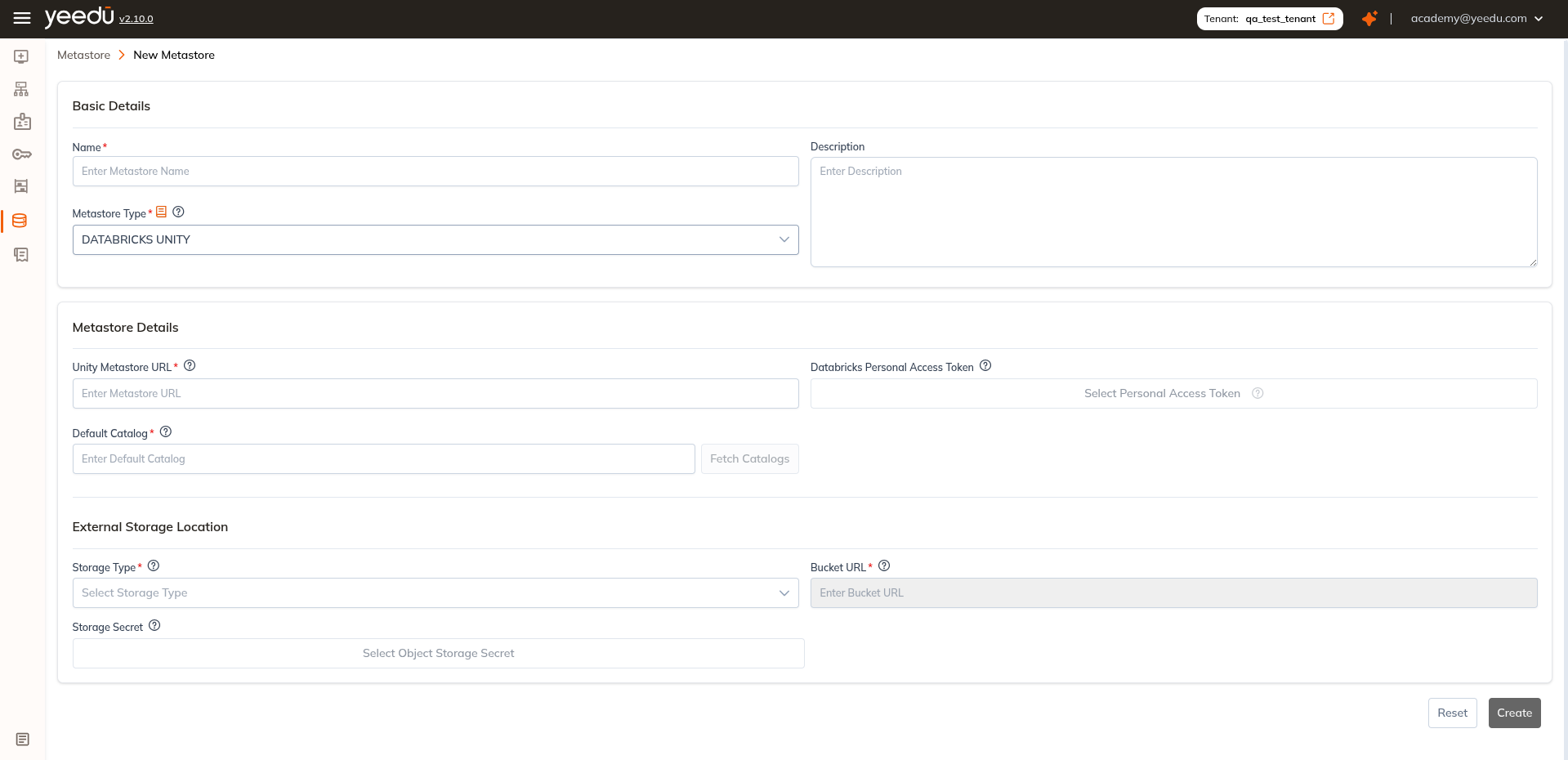
Provide the required details
Basic Details
- Name: Required; must be unique
- Description: (Optional) Add details for clarity
- Metastore Type: Select
DATABRICKS UNITY
Metastore Details
- Unity Metastore URL: Enter the unique endpoint assigned to your Unity Metastore (e.g.,
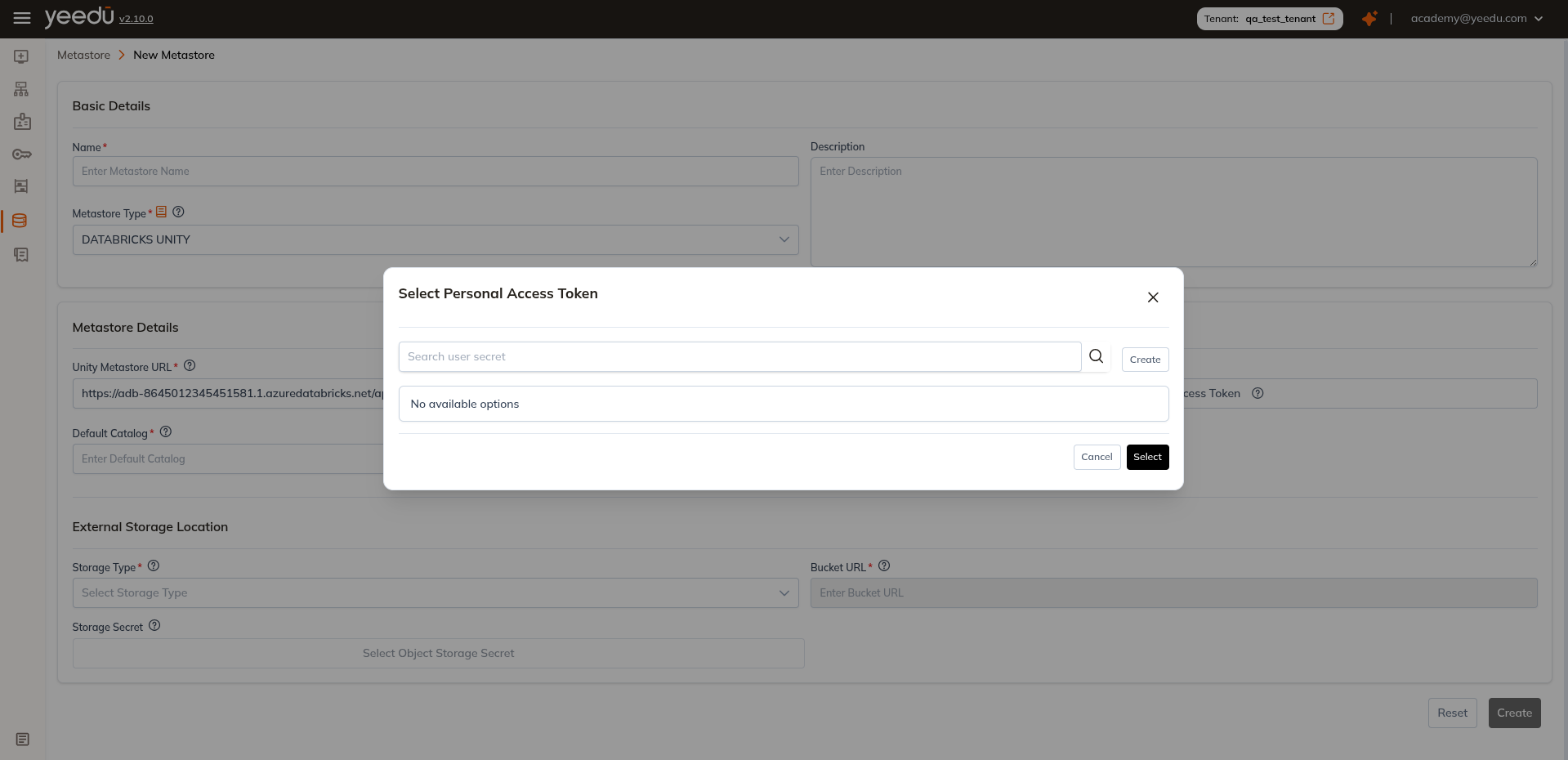
https://adb-.../api/2.1/unity-catalog) - Databricks Personal Access Token: Select Personal Access Token Secret from the dropdown
- Default Catalog: Enter the default catalog. If you aren't sure of the exact name, use Fetch Catalogs to choose one after retrieving the list
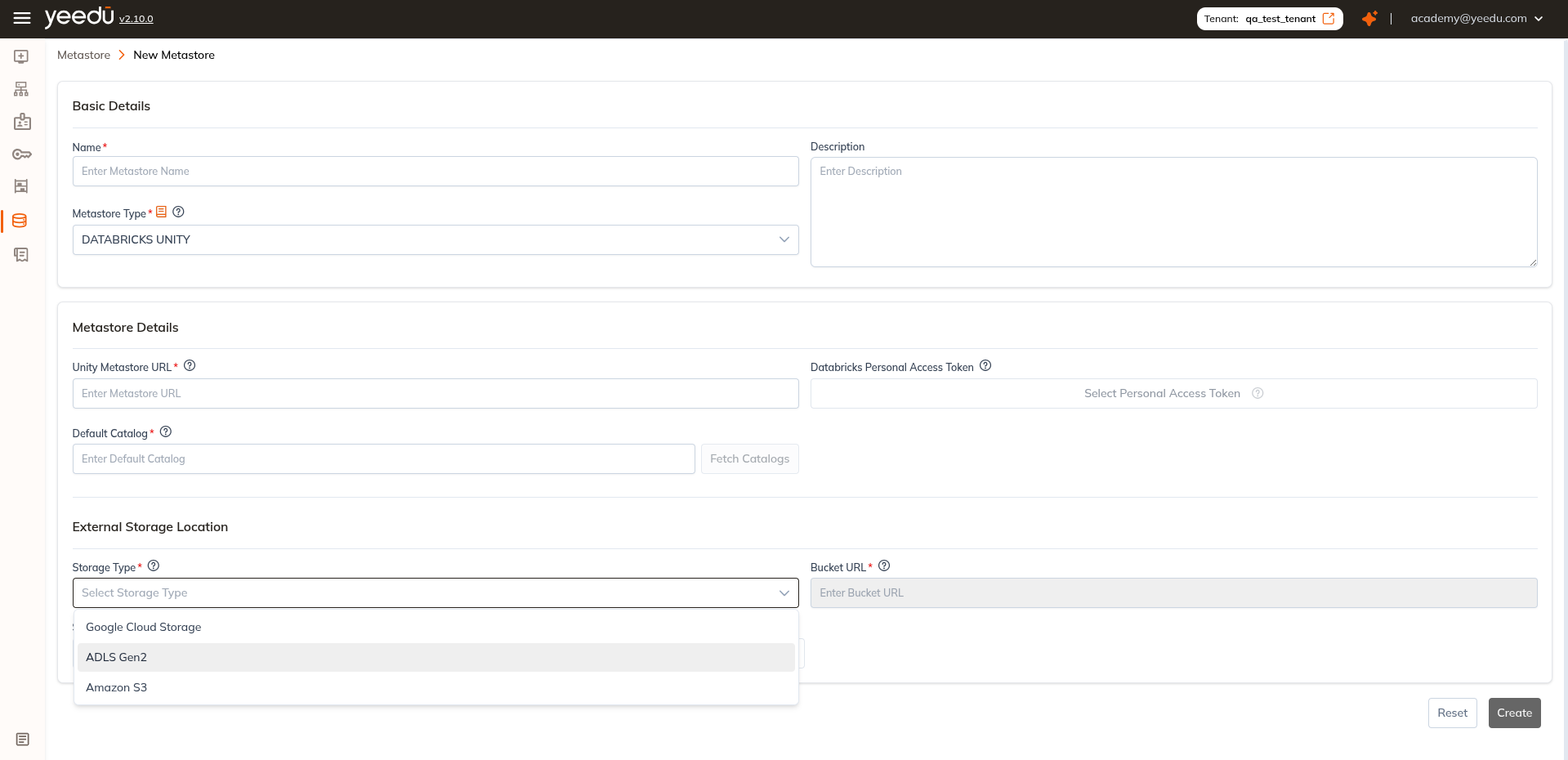
External Storage Location
- Storage Type: Choose from
Google Cloud Storage,ADLS Gen2,Amazon S3 - Bucket URL: e.g.,
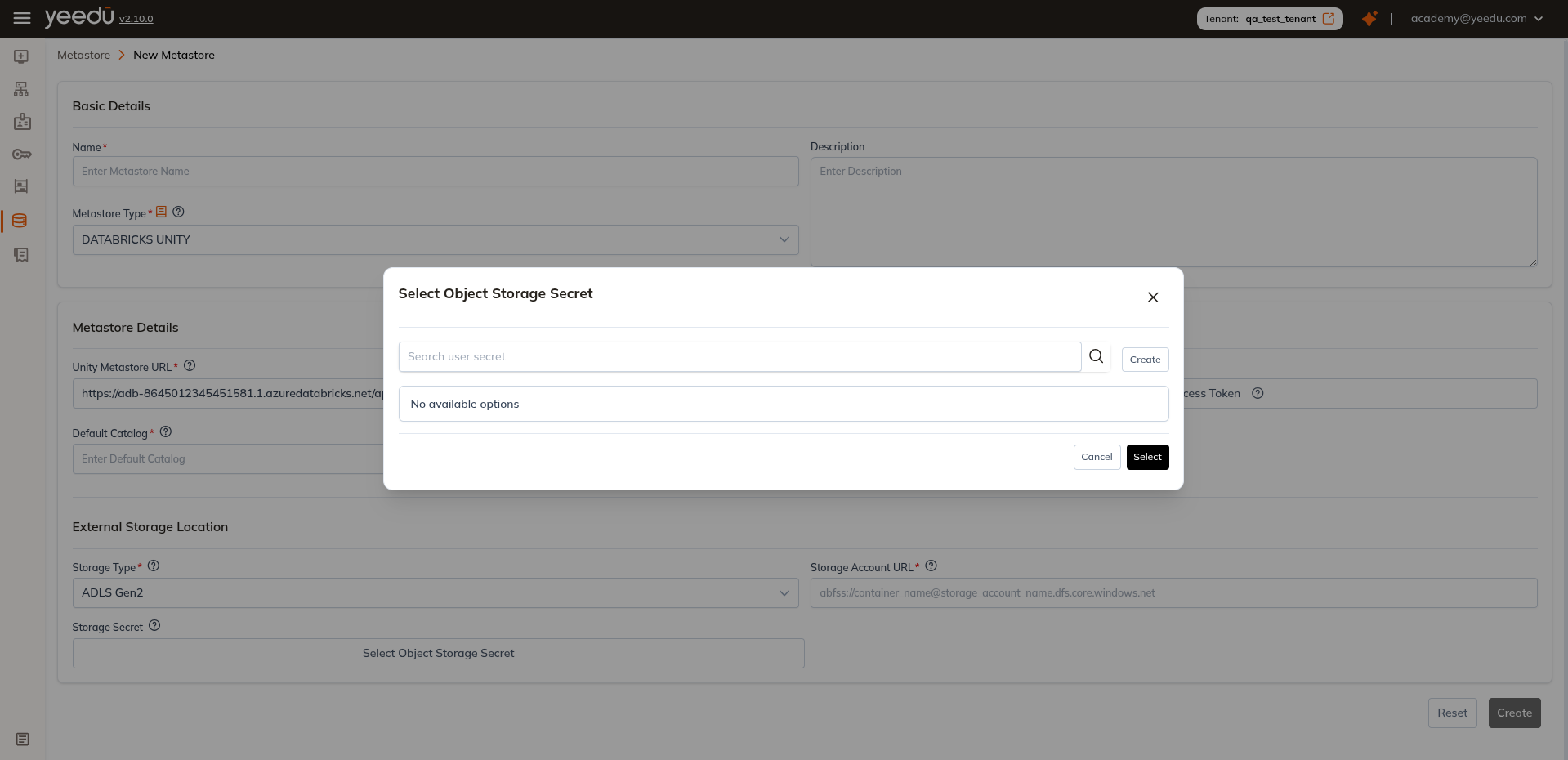
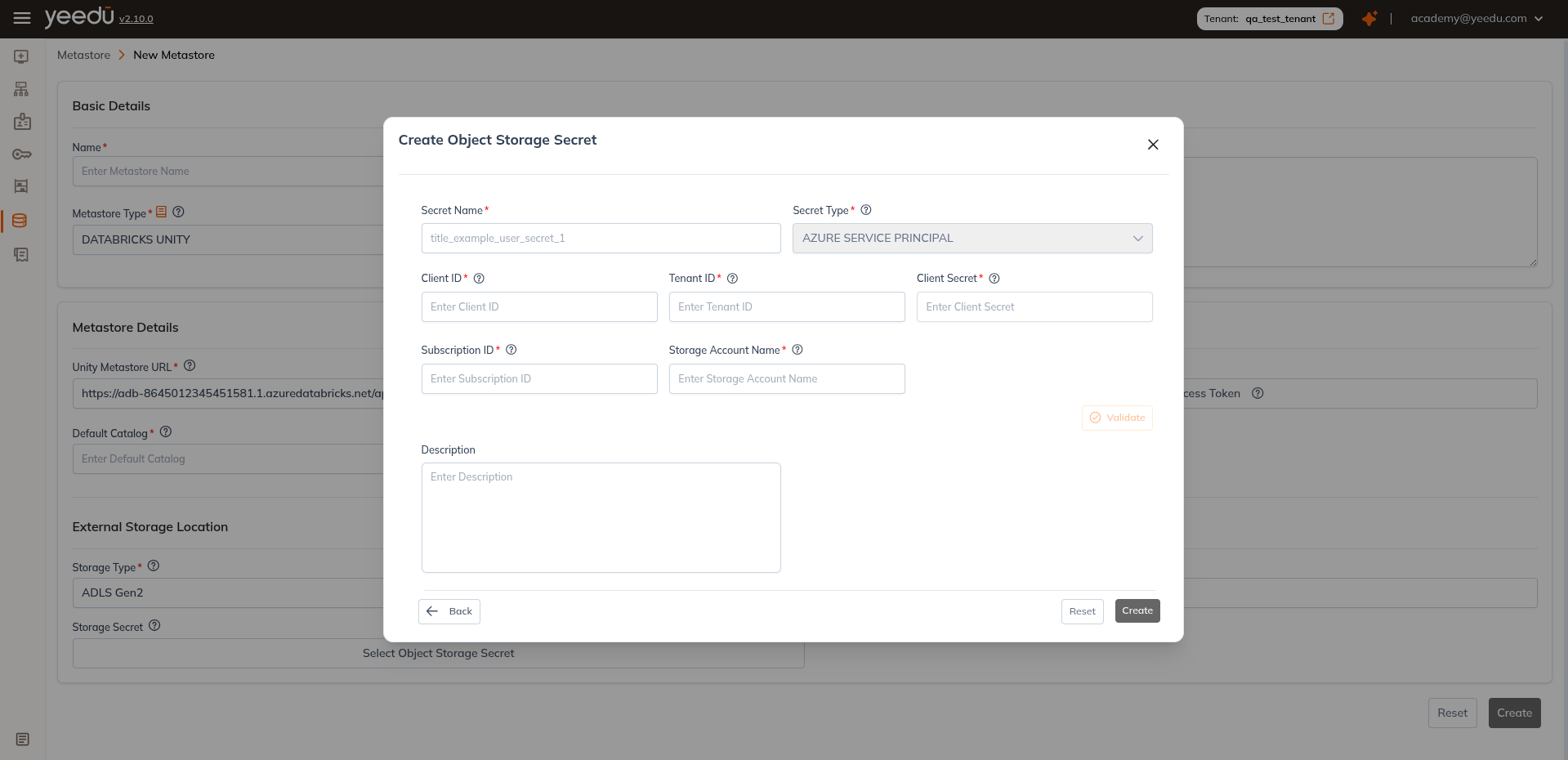
s3://my-bucket-name - Storage Secret: Select object-storage credentials
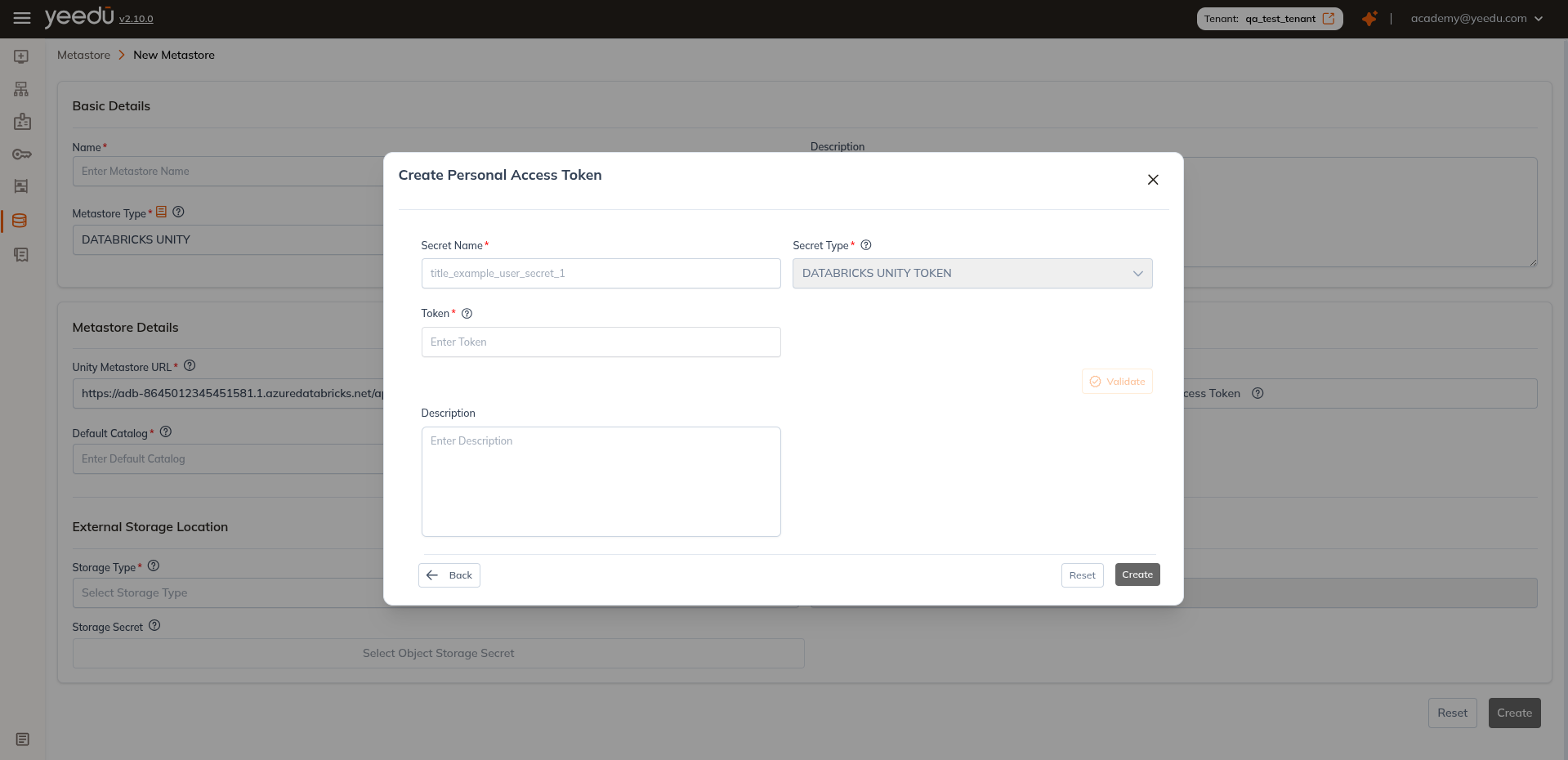
You don't have to prepare these secrets in advance: choose existing secrets, or create new ones directly in the UI.
Multi-catalog setup
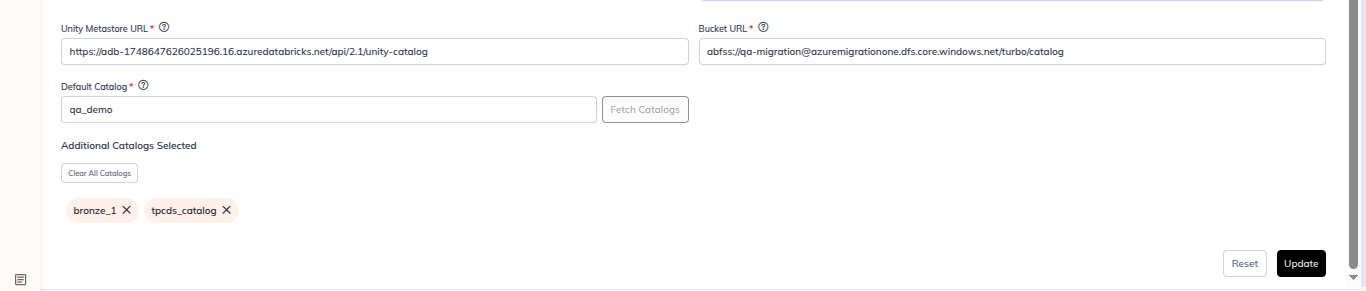
- In the metastore edit page, set
Default Catalog(e.g.,qa_demo) - Click Fetch Catalogs
- In the Select Catalog modal:
- Search by name
- Select catalog checkboxes (
bronze_1,qa_demo (Default),tpcds_catalog) - Optional: clear or adjust as needed
- Click Select
- Verify selected entries appear in
Additional Catalogs Selectedchips - Click Update
Example screenshot behavior
In the screenshot above the selected catalogs are bronze_1, qa_demo and tpcds_catalog, the default catalog badge sits on qa_demo (Default), and main, samples and system are left unchecked. The buttons available in that modal are Reset, Select, Clear All Catalogs and Update.
Note: we recommend a UI resolution of 1920x1080.